On Demand Customizer: Design Your Own Branded Swag

On Demand Customizer: Design Your Own Branded Swag

On Demand Customizer: Design Your Own Branded Swag

Product Updates

Product Updates

Product Updates

On Demand Customizer: Design Your Own Branded Swag

On Demand Customizer: Design Your Own Branded Swag

On Demand Customizer: Design Your Own Branded Swag

The On Demand Customizer lets you design a product, see the exact price, and order one or a hundred with no inventory. 

The On Demand Customizer lets you design a product, see the exact price, and order one or a hundred with no inventory. 

The On Demand Customizer lets you design a product, see the exact price, and order one or a hundred with no inventory. 

5

5

min read

min read

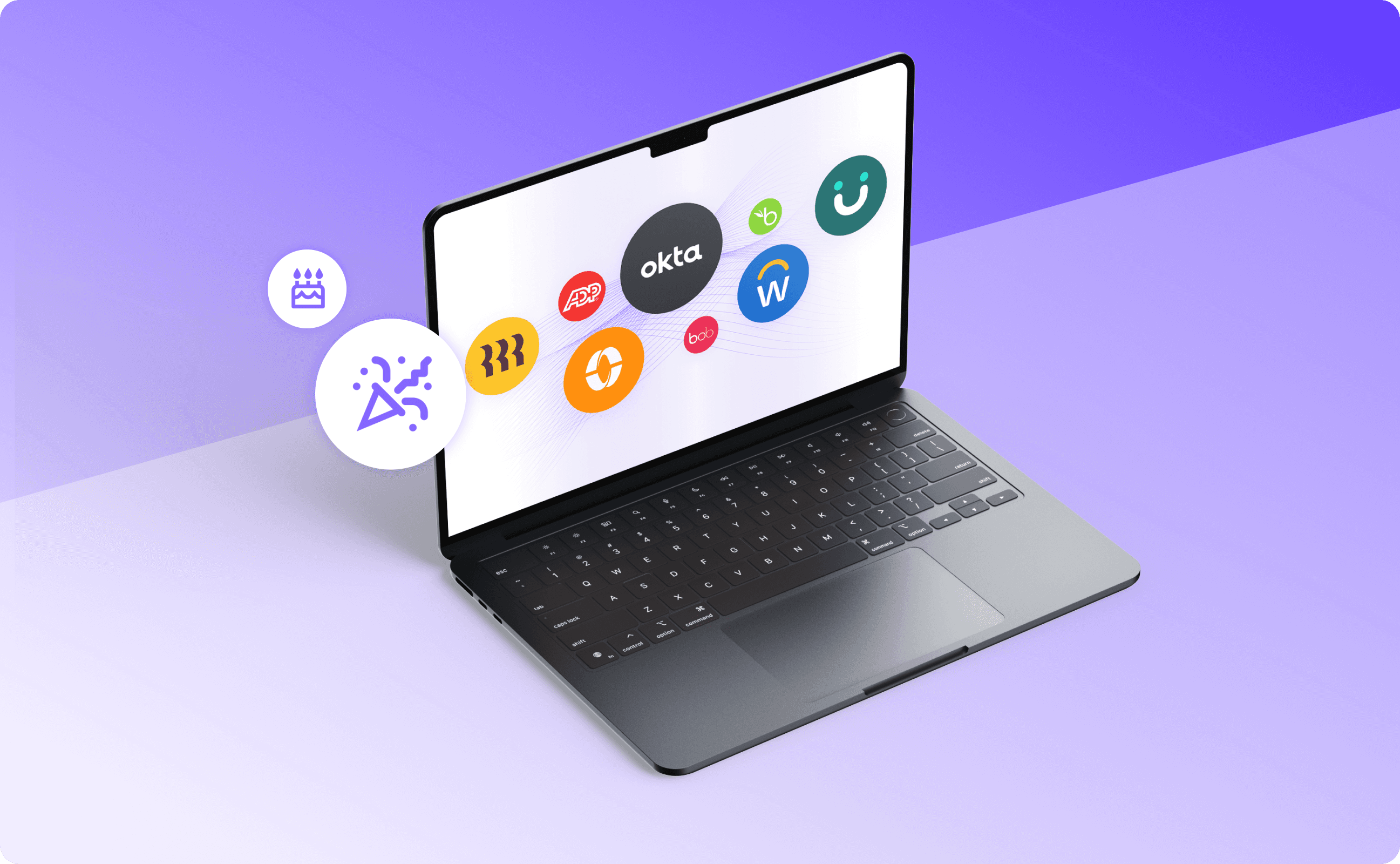
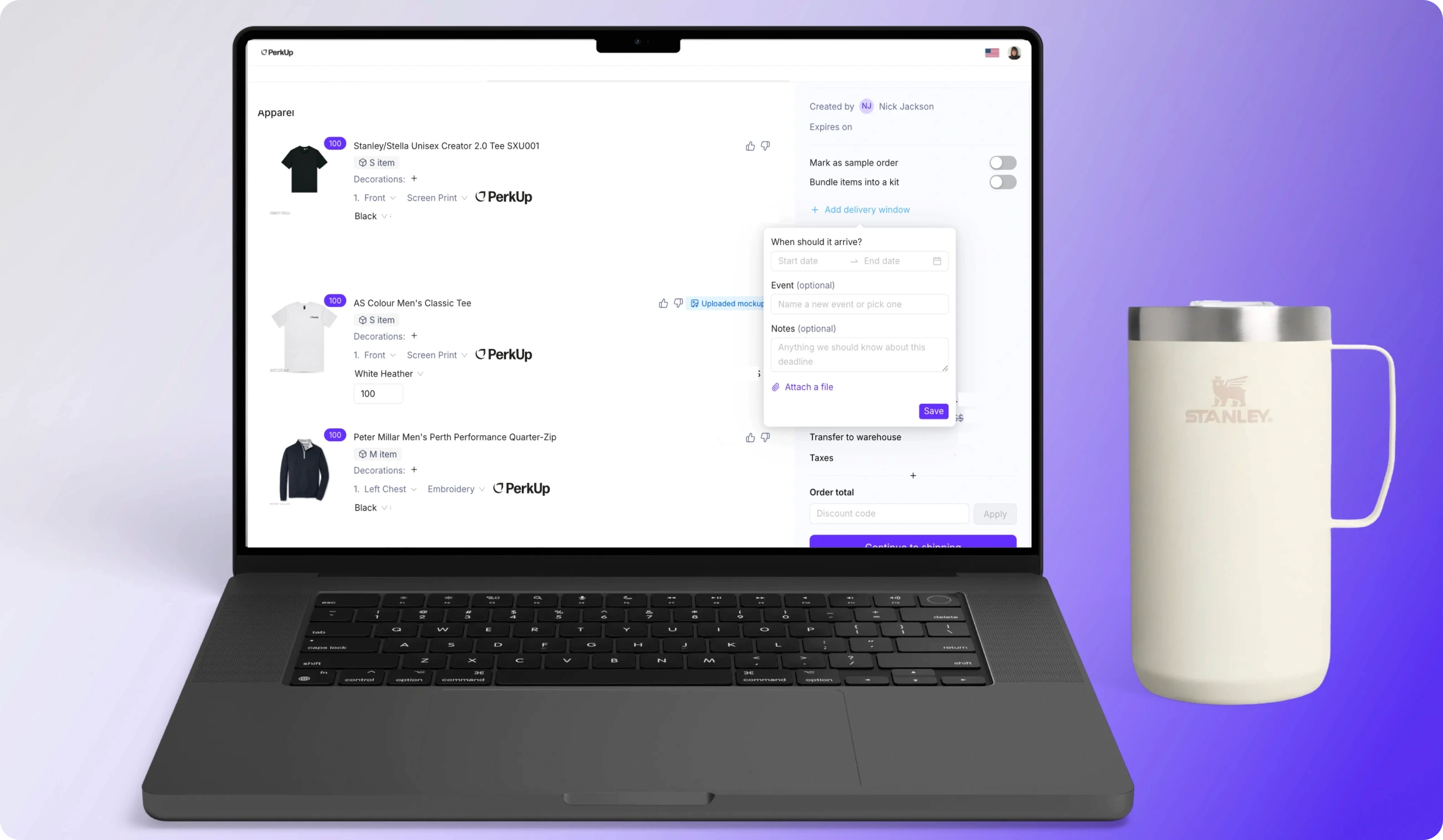
Laptop with On Demand swag items from PerkUp open.
In this Post

Creating branded swag usually goes like this: someone asks for hoodies for the new hire kits, you email a vendor, the vendor asks for vector files you don't have, so a designer mocks something up. Three proof rounds later, you commit to 250 units to hit the price break, and a pallet of size-L hoodies lands in a closet.

Then the logo of your company changes, or half the team turns out to be remote, and the closet inventory becomes a write-off. The actual design work was maybe an hour. The handoffs took three weeks.

The On Demand Customizer removes those handoffs. It's a guided design tool built into PerkUp’s platform: pick a product from the On Demand swag catalog, drop in your logo, choose colors and a print method, check the price, and save it. The product is ready to order On Demand, one unit or a hundred, with no inventory commitment.


How does the On Demand Customizer work?
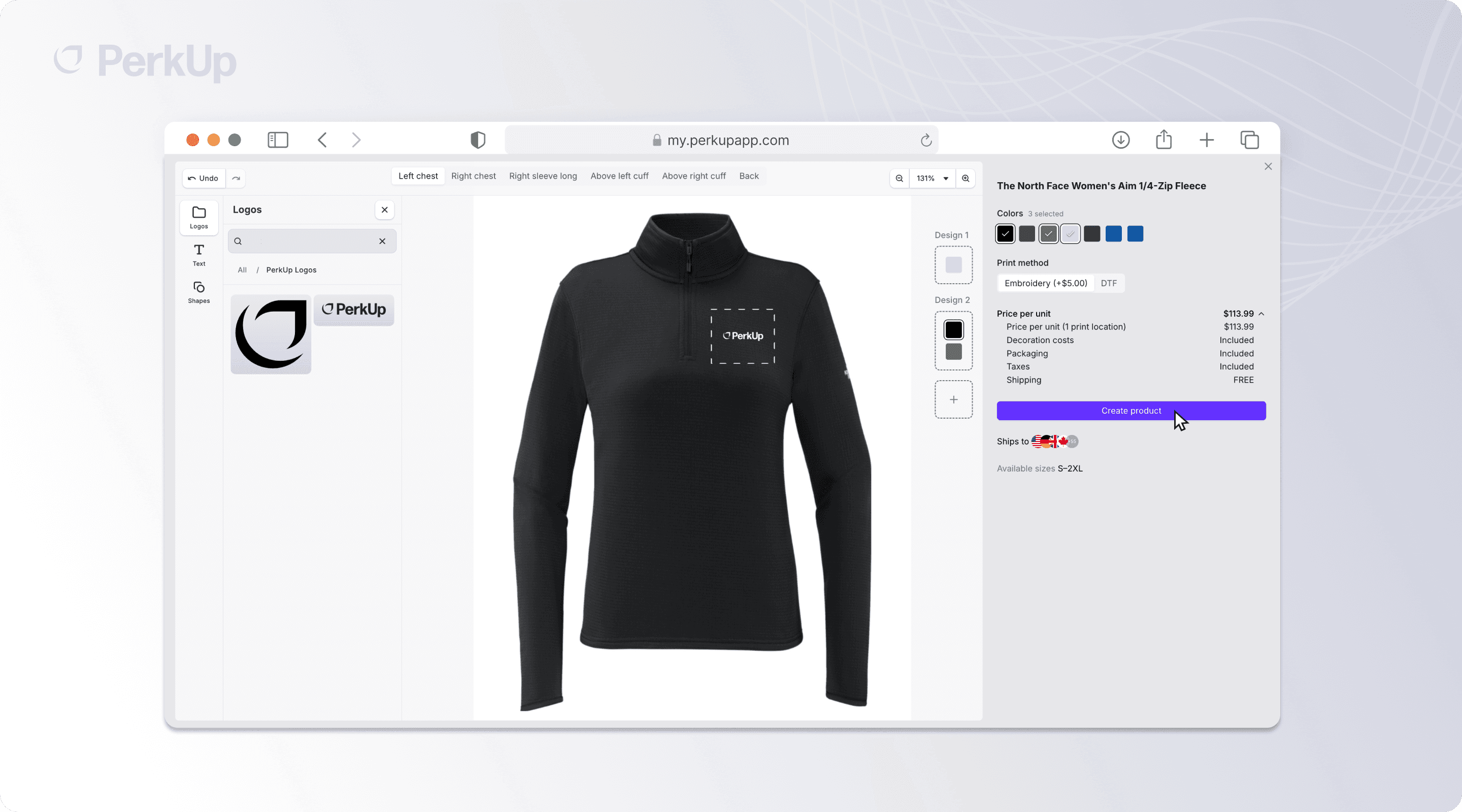
You start in PerkUp’s On Demand swag catalog. From there, search and filter by category, brand, price range, print method, and/or shipping country. You’ll then see the product showing price, size range, free shipping, and where the item ships, so you can rule things out before you open the editor.

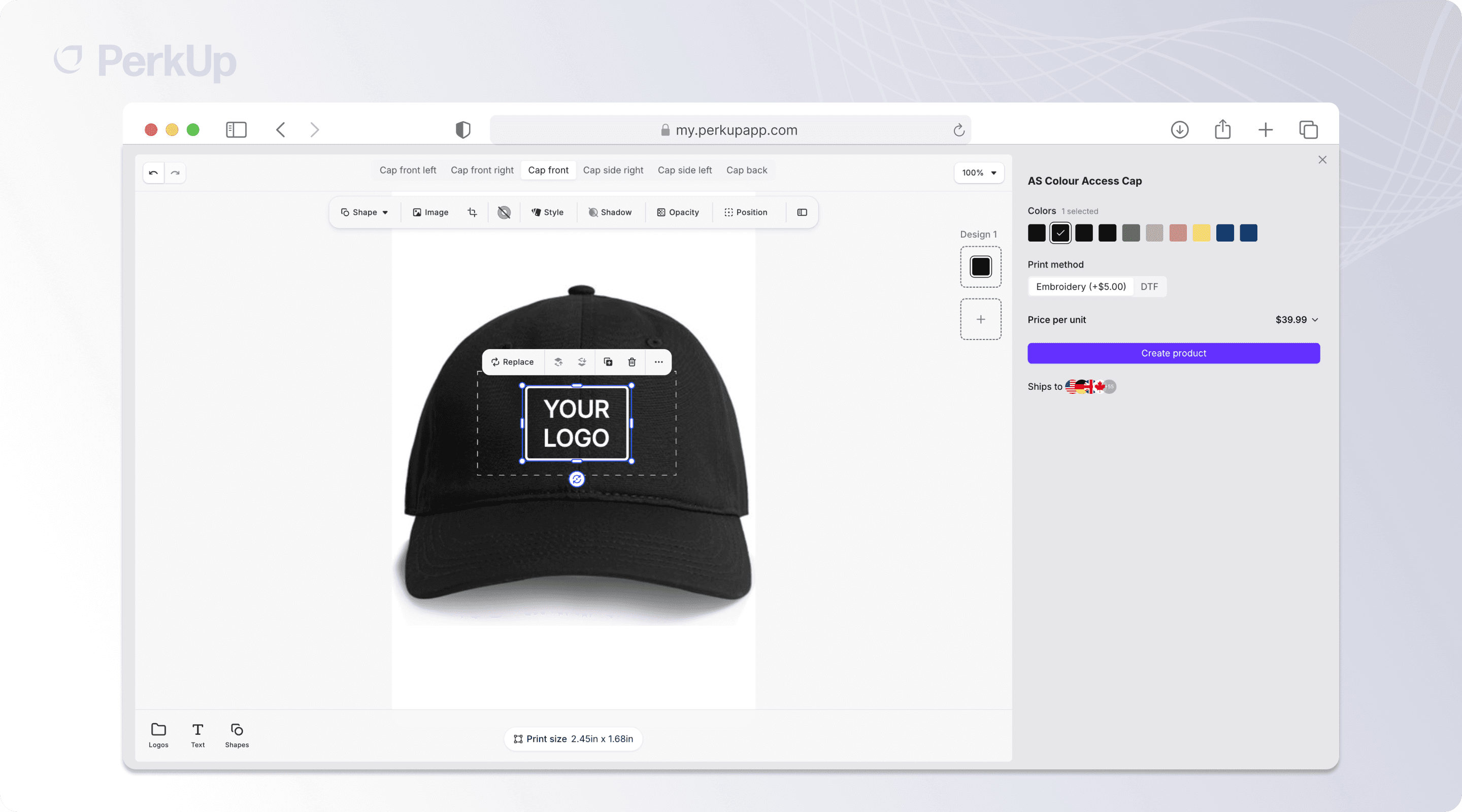
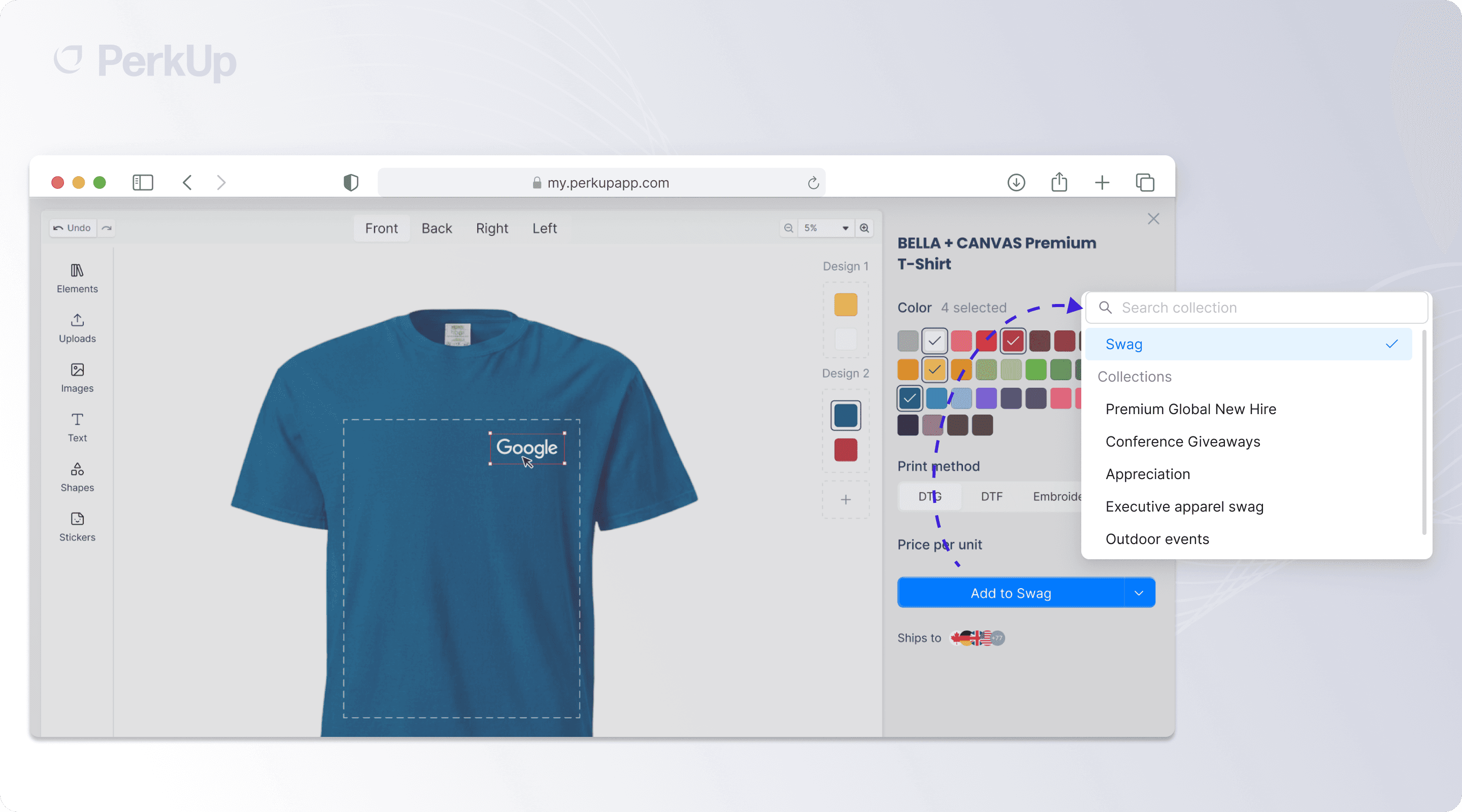
After that, pick a swag item and add the artwork. You can pull your organization's logo straight from the asset library or upload new artwork. PerkUp also always auto-generates a mockup with your logo placed, and you can adjust it if you need to.

From there, the design canvas works the way you'd expect: move, resize, rotate, crop, and layer artwork or text. There’s no design software or a handoff to a designer for a simple logo placement.

A few things the editor handles for you:

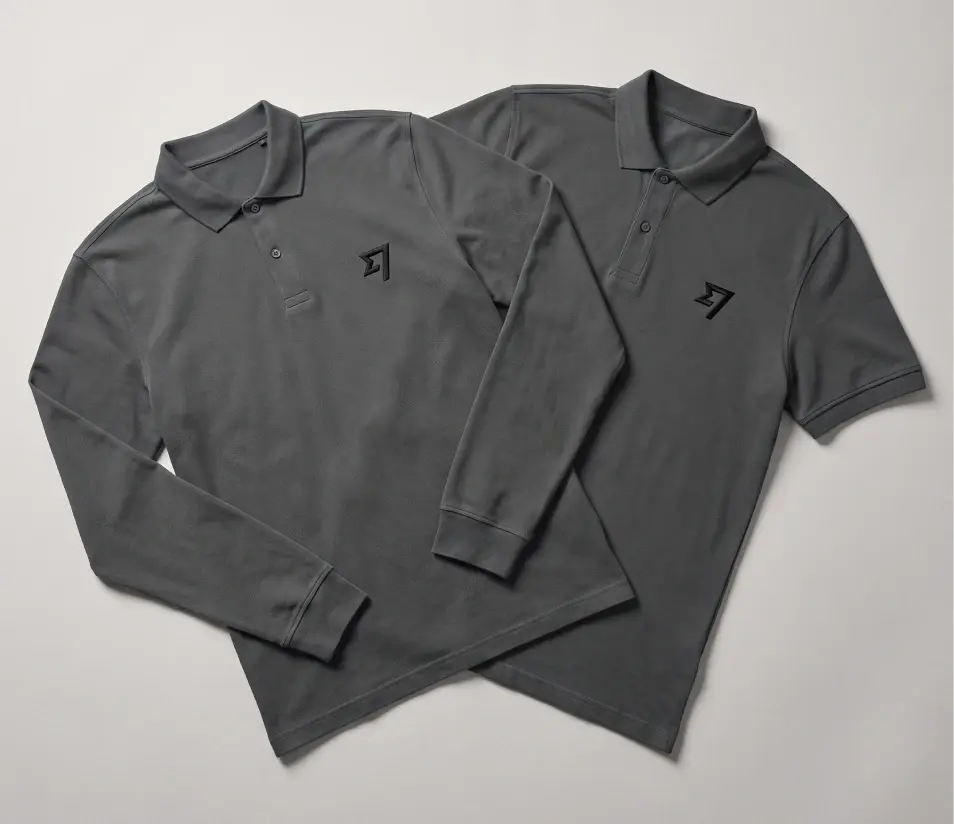
  • Colors and color groups - Choose which product colors to include. Color groups apply one design across several colors at once, and you can break a color out when it needs its own version, say, a white logo for dark shirts and a dark logo for light ones.

  • Print methods - You only see methods the product actually supports: direct-to-garment, embroidery, UV printing, screen printing, laser engraving, and more. If embroidery costs more than print, you see the difference before you save.

  • Multiple print locations - Front, back, sleeve, collar, decorate whichever views the product supports and switch between them in the editor.


What does the swag cost? Know Before You Save.
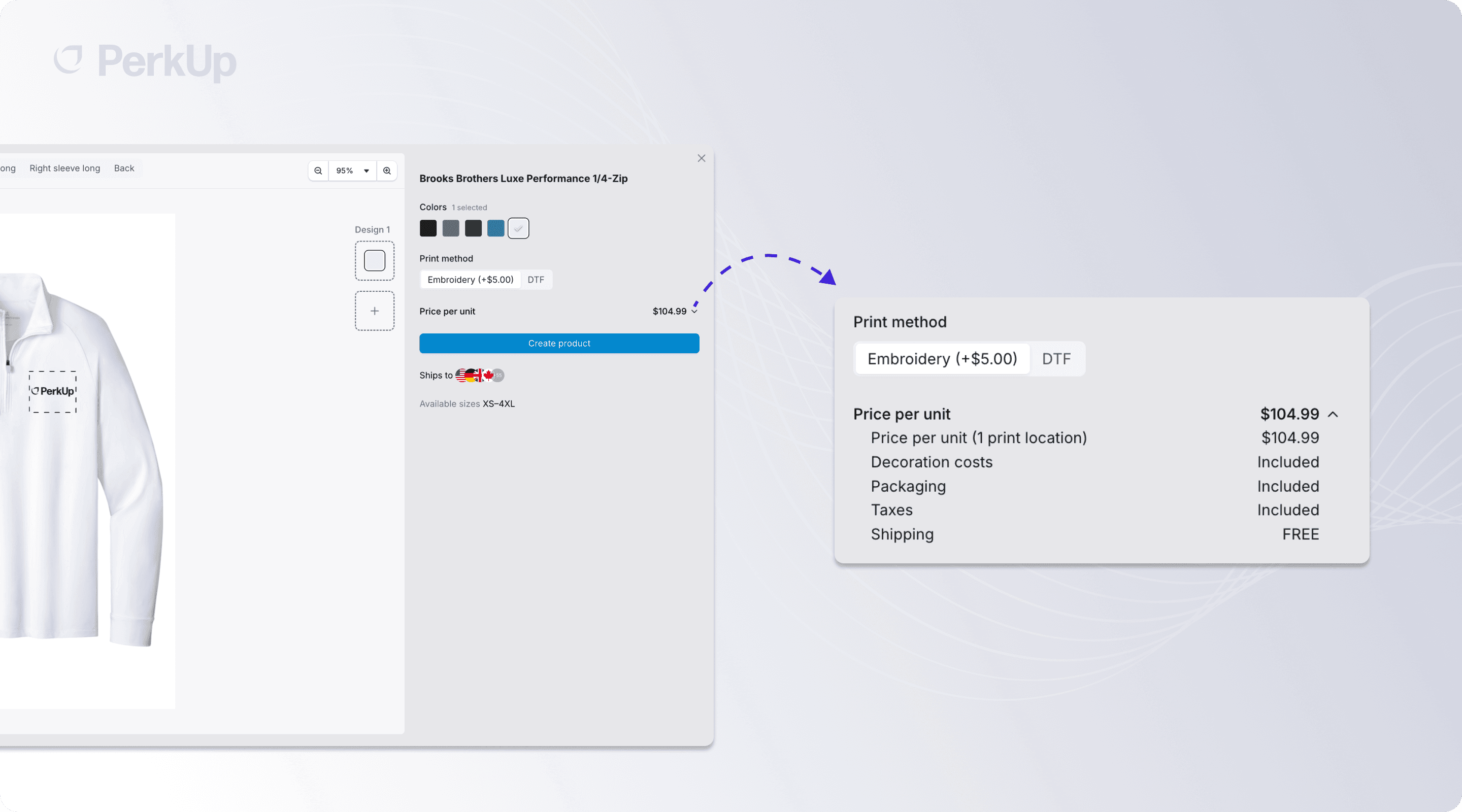
Pricing surprises kill swag projects. The customizer shows the per-unit price as you build, with a breakdown: base product, decoration costs, packaging, and taxes. Available sizes and shipping countries sit right next to it, too.

Change the print method or add a second print location, and the price updates. There’s no need for quote requests or waiting on a sales rep to get back to you.


How do you avoid bad prints?
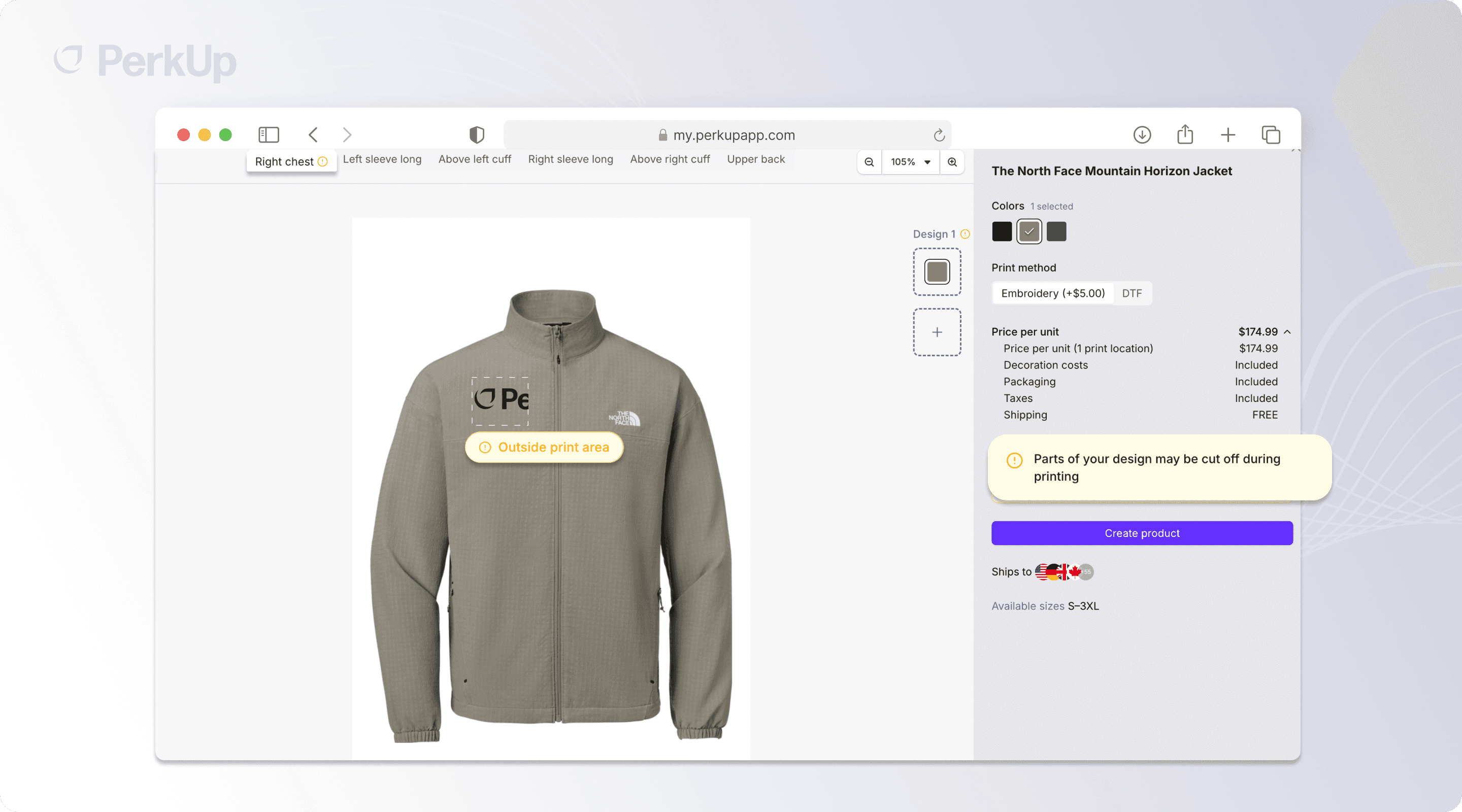
The most expensive swag problem is the one you find after the order ships. The customizer checks for the common ones before you save:

  • If your artwork is too low-resolution and may print blurry, it warns you and asks for a higher-quality file.

  • If part of the design sits outside the printable area and could get cut off, it flags that too.

One honest boundary: the customizer can catch a low-quality image, but it can't make a bad file print sharply. Clean logo files still matter.

What happens after you save?

Saving creates a custom branded product in PerkUp: your chosen swag, colors, print method, print locations, and artwork, all stored so it produces the design correctly when ordered. Now it's a product design anyone on your team can buy or send. You can also add it to a private collection (like a dedicated work anniversary collection) or stock it in your swag store for employees to redeem. Reopen the customizer anytime to edit or update the design.

You design once, and the platform handles ordering, production, and shipping every time it's used.

Two shortcuts worth knowing:

  1. Quick add: If you've already selected a logo and the product has a known placement, you can add it straight from the catalog without opening the editor. For simple branded swag, that's the whole workflow.

  2. Employee-facing personalization: Saved products can include simple fields like a name, a line of text, or an image. Recipients see friendly input fields on the product page instead of a design editor. Some companies already use this for team swag, wherein their team members choose the logo and text themselves, but not where those go or how big they are. 


Why create custom swag with PerkUp?

A design tool on its own doesn't solve swag. The point is what the saved product connects to.

Products you build in the customizer go wherever swag goes in PerkUp. Stock your company swag store, so employees can redeem branded gear themselves. Drop them into new hire kits. Attach them to automated anniversary and birthday gifts with your HRIS integration, supplying the dates, and a five-year anniversary gift can be a custom-branded swag item that nobody has to design, order, or store.

And because everything is On Demand swag, there's only a one-unit minimum order. Items are produced when ordered and shipped from PerkUp's supplier network


Try It On Your Own Logo

The fastest way to evaluate PerkUp’s On Demand Customizer is to build something. Upload your logo, pick a product, and you'll have priced, previewable branded swag in a few minutes.

If you're already on PerkUp, the customizer is live in your On Demand catalog. If you're not, book a demo, and we'll build a product with your logo on the call.


Frequently Asked Questions

How do I put my logo on products in PerkUp? 

Open a product from the on-demand catalog, then choose a logo from your asset library or upload artwork. For many products, PerkUp places the logo in the recommended spot automatically. Adjust placement, size, and colors on the design canvas, then save.

Is there a minimum order for custom On Demand swag?

PerkUp’s On Demand swag only requires a 1-unit minimum per order. Swag items are made on demand, so there's no upfront inventory. Order one unit or hundreds from the same saved product.

What print methods are available? 

It depends on the swag item. With PerkUp, decoration and print methods include direct-to-garment, direct-to-film, embroidery, UV printing, sublimation, screen printing, and laser engraving. The customizer only shows methods the selected product supports, with any price difference visible before you save.

Can recipients personalize a saved product? 

Yes, for swag set up with customizable fields. Recipients can add their name, text, or an image through simple fields on the product page, no design editor required.

Creating branded swag usually goes like this: someone asks for hoodies for the new hire kits, you email a vendor, the vendor asks for vector files you don't have, so a designer mocks something up. Three proof rounds later, you commit to 250 units to hit the price break, and a pallet of size-L hoodies lands in a closet.

Then the logo of your company changes, or half the team turns out to be remote, and the closet inventory becomes a write-off. The actual design work was maybe an hour. The handoffs took three weeks.

The On Demand Customizer removes those handoffs. It's a guided design tool built into PerkUp’s platform: pick a product from the On Demand swag catalog, drop in your logo, choose colors and a print method, check the price, and save it. The product is ready to order On Demand, one unit or a hundred, with no inventory commitment.


How does the On Demand Customizer work?

You start in PerkUp’s On Demand swag catalog. From there, search and filter by category, brand, price range, print method, and/or shipping country. You’ll then see the product showing price, size range, free shipping, and where the item ships, so you can rule things out before you open the editor.

After that, pick a swag item and add the artwork. You can pull your organization's logo straight from the asset library or upload new artwork. PerkUp also always auto-generates a mockup with your logo placed, and you can adjust it if you need to.

From there, the design canvas works the way you'd expect: move, resize, rotate, crop, and layer artwork or text. There’s no design software or a handoff to a designer for a simple logo placement.

A few things the editor handles for you:

  • Colors and color groups - Choose which product colors to include. Color groups apply one design across several colors at once, and you can break a color out when it needs its own version, say, a white logo for dark shirts and a dark logo for light ones.

  • Print methods - You only see methods the product actually supports: direct-to-garment, embroidery, UV printing, screen printing, laser engraving, and more. If embroidery costs more than print, you see the difference before you save.

  • Multiple print locations - Front, back, sleeve, collar, decorate whichever views the product supports and switch between them in the editor.


What does the swag cost? Know Before You Save.

Pricing surprises kill swag projects. The customizer shows the per-unit price as you build, with a breakdown: base product, decoration costs, packaging, and taxes. Available sizes and shipping countries sit right next to it, too.

Change the print method or add a second print location, and the price updates. There’s no need for quote requests or waiting on a sales rep to get back to you.


How do you avoid bad prints?

The most expensive swag problem is the one you find after the order ships. The customizer checks for the common ones before you save:

  • If your artwork is too low-resolution and may print blurry, it warns you and asks for a higher-quality file.

  • If part of the design sits outside the printable area and could get cut off, it flags that too.

One honest boundary: the customizer can catch a low-quality image, but it can't make a bad file print sharply. Clean logo files still matter.


What happens after you save?

Saving creates a custom branded product in PerkUp: your chosen swag, colors, print method, print locations, and artwork, all stored so it produces the design correctly when ordered. Now it's a product design anyone on your team can buy or send. You can also add it to a private collection (like a dedicated work anniversary collection) or stock it in your swag store for employees to redeem. Reopen the customizer anytime to edit or update the design.

You design once, and the platform handles ordering, production, and shipping every time it's used.

Two shortcuts worth knowing:

  1. Quick add: If you've already selected a logo and the product has a known placement, you can add it straight from the catalog without opening the editor. For simple branded swag, that's the whole workflow.

  2. Employee-facing personalization: Saved products can include simple fields like a name, a line of text, or an image. Recipients see friendly input fields on the product page instead of a design editor. Some companies already use this for team swag, wherein their team members choose the logo and text themselves, but not where those go or how big they are. 


Why create custom swag with PerkUp?

A design tool on its own doesn't solve swag. The point is what the saved product connects to.

Products you build in the customizer go wherever swag goes in PerkUp. Stock your company swag store, so employees can redeem branded gear themselves. Drop them into new hire kits. Attach them to automated anniversary and birthday gifts with your HRIS integration, supplying the dates, and a five-year anniversary gift can be a custom-branded swag item that nobody has to design, order, or store.

And because everything is On Demand swag, there's only a one-unit minimum order. Items are produced when ordered and shipped from PerkUp's supplier network


Try It On Your Own Logo

The fastest way to evaluate PerkUp’s On Demand Customizer is to build something. Upload your logo, pick a product, and you'll have priced, previewable branded swag in a few minutes.

If you're already on PerkUp, the customizer is live in your On Demand catalog. If you're not, book a demo, and we'll build a product with your logo on the call.


Frequently Asked Questions

How do I put my logo on products in PerkUp? 

Open a product from the on-demand catalog, then choose a logo from your asset library or upload artwork. For many products, PerkUp places the logo in the recommended spot automatically. Adjust placement, size, and colors on the design canvas, then save.

Is there a minimum order for custom On Demand swag?

PerkUp’s On Demand swag only requires a 1-unit minimum per order. Swag items are made on demand, so there's no upfront inventory. Order one unit or hundreds from the same saved product.

What print methods are available? 

It depends on the swag item. With PerkUp, decoration and print methods include direct-to-garment, direct-to-film, embroidery, UV printing, sublimation, screen printing, and laser engraving. The customizer only shows methods the selected product supports, with any price difference visible before you save.

Can recipients personalize a saved product? 

Yes, for swag set up with customizable fields. Recipients can add their name, text, or an image through simple fields on the product page, no design editor required.

Creating branded swag usually goes like this: someone asks for hoodies for the new hire kits, you email a vendor, the vendor asks for vector files you don't have, so a designer mocks something up. Three proof rounds later, you commit to 250 units to hit the price break, and a pallet of size-L hoodies lands in a closet.

Then the logo of your company changes, or half the team turns out to be remote, and the closet inventory becomes a write-off. The actual design work was maybe an hour. The handoffs took three weeks.

The On Demand Customizer removes those handoffs. It's a guided design tool built into PerkUp’s platform: pick a product from the On Demand swag catalog, drop in your logo, choose colors and a print method, check the price, and save it. The product is ready to order On Demand, one unit or a hundred, with no inventory commitment.


How does the On Demand Customizer work?

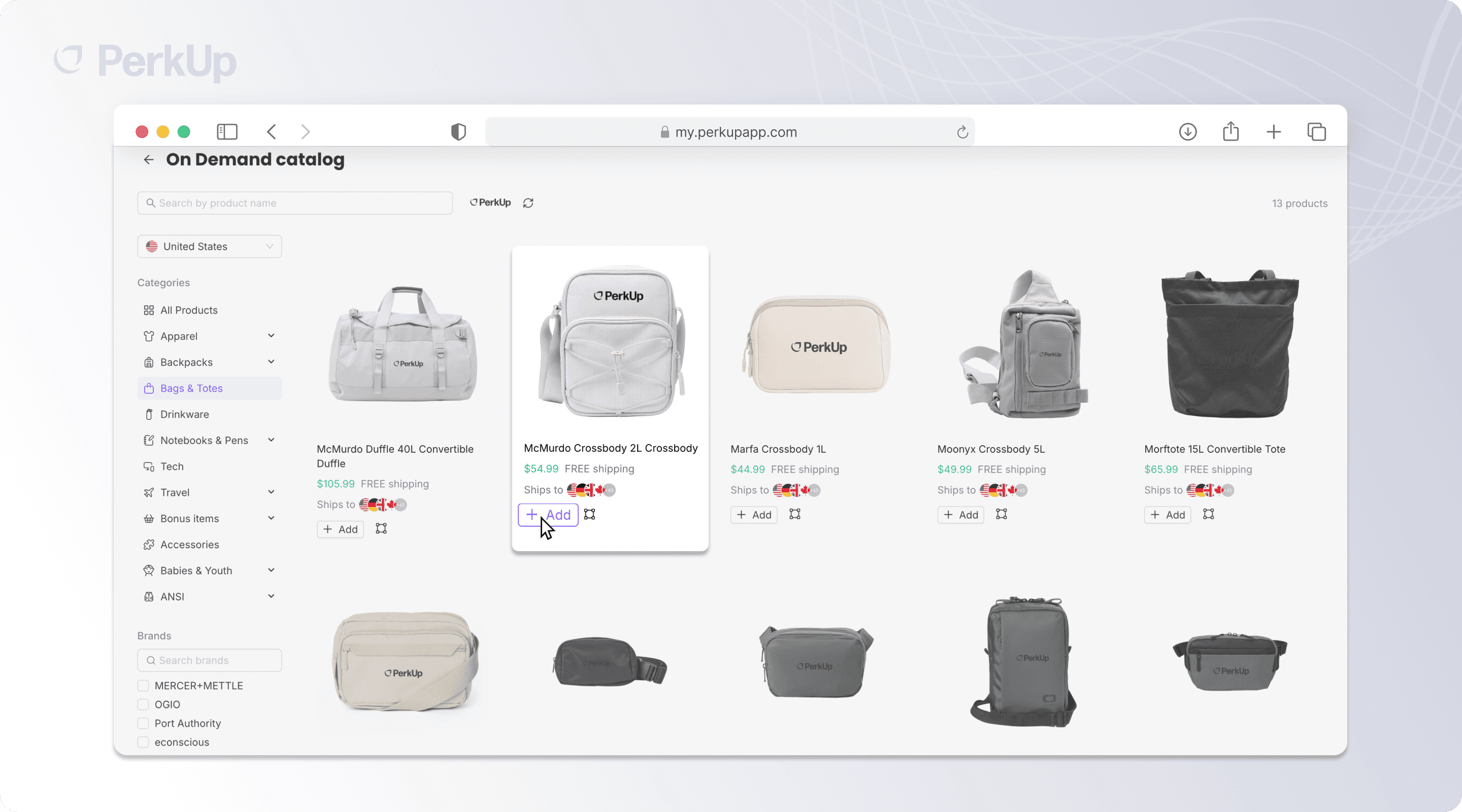
You start in PerkUp’s On Demand swag catalog. From there, search and filter by category, brand, price range, print method, and/or shipping country. You’ll then see the product showing price, size range, free shipping, and where the item ships, so you can rule things out before you open the editor.

After that, pick a swag item and add the artwork. You can pull your organization's logo straight from the asset library or upload new artwork. PerkUp also always auto-generates a mockup with your logo placed, and you can adjust it if you need to.

From there, the design canvas works the way you'd expect: move, resize, rotate, crop, and layer artwork or text. There’s no design software or a handoff to a designer for a simple logo placement.

A few things the editor handles for you:

  • Colors and color groups - Choose which product colors to include. Color groups apply one design across several colors at once, and you can break a color out when it needs its own version, say, a white logo for dark shirts and a dark logo for light ones.

  • Print methods - You only see methods the product actually supports: direct-to-garment, embroidery, UV printing, screen printing, laser engraving, and more. If embroidery costs more than print, you see the difference before you save.

  • Multiple print locations - Front, back, sleeve, collar, decorate whichever views the product supports and switch between them in the editor.


What does the swag cost? Know Before You Save.

Pricing surprises kill swag projects. The customizer shows the per-unit price as you build, with a breakdown: base product, decoration costs, packaging, and taxes. Available sizes and shipping countries sit right next to it, too.

Change the print method or add a second print location, and the price updates. There’s no need for quote requests or waiting on a sales rep to get back to you.


How do you avoid bad prints?

The most expensive swag problem is the one you find after the order ships. The customizer checks for the common ones before you save:

  • If your artwork is too low-resolution and may print blurry, it warns you and asks for a higher-quality file.

  • If part of the design sits outside the printable area and could get cut off, it flags that too.

One honest boundary: the customizer can catch a low-quality image, but it can't make a bad file print sharply. Clean logo files still matter.


What happens after you save?

Saving creates a custom branded product in PerkUp: your chosen swag, colors, print method, print locations, and artwork, all stored so it produces the design correctly when ordered. Now it's a product design anyone on your team can buy or send. You can also add it to a private collection (like a dedicated work anniversary collection) or stock it in your swag store for employees to redeem. Reopen the customizer anytime to edit or update the design.

You design once, and the platform handles ordering, production, and shipping every time it's used.

Two shortcuts worth knowing:

  1. Quick add: If you've already selected a logo and the product has a known placement, you can add it straight from the catalog without opening the editor. For simple branded swag, that's the whole workflow.
  2. Employee-facing personalization: Saved products can include simple fields like a name, a line of text, or an image. Recipients see friendly input fields on the product page instead of a design editor. Some companies already use this for team swag, wherein their team members choose the logo and text themselves, but not where those go or how big they are. 

Why create custom swag with PerkUp?
A design tool on its own doesn't solve swag. The point is what the saved product connects to.

Products you build in the customizer go wherever swag goes in PerkUp. Stock your company swag store, so employees can redeem branded gear themselves. Drop them into new hire kits. Attach them to automated anniversary and birthday gifts with your HRIS integration, supplying the dates, and a five-year anniversary gift can be a custom-branded swag item that nobody has to design, order, or store.

And because everything is On Demand swag, there's only a one-unit minimum order. Items are produced when ordered and shipped from PerkUp's supplier network


Try It On Your Own Logo

The fastest way to evaluate PerkUp’s On Demand Customizer is to build something. Upload your logo, pick a product, and you'll have priced, previewable branded swag in a few minutes.

If you're already on PerkUp, the customizer is live in your On Demand catalog. If you're not, book a demo, and we'll build a product with your logo on the call.

Frequently Asked Questions

How do I put my logo on products in PerkUp? 

Open a product from the on-demand catalog, then choose a logo from your asset library or upload artwork. For many products, PerkUp places the logo in the recommended spot automatically. Adjust placement, size, and colors on the design canvas, then save.

Is there a minimum order for custom On Demand swag?

PerkUp’s On Demand swag only requires a 1-unit minimum per order. Swag items are made on demand, so there's no upfront inventory. Order one unit or hundreds from the same saved product.

What print methods are available? 

It depends on the swag item. With PerkUp, decoration and print methods include direct-to-garment, direct-to-film, embroidery, UV printing, sublimation, screen printing, and laser engraving. The customizer only shows methods the selected product supports, with any price difference visible before you save.

Can recipients personalize a saved product? 

Yes, for swag set up with customizable fields. Recipients can add their name, text, or an image through simple fields on the product page, no design editor required.
import { useEffect } from "react"


export default function CarouselFixer() {

useEffect(() => {

// Wait for CMS content to render

const init = () => {

// Find all horizontally scrollable containers inside CMS content

const contents = document.querySelectorAll(".framer-text, [class*='content'], [class*='Content']")


contents.forEach((content) => {

const scrollEls = content.querySelectorAll("ul, ol, div")

scrollEls.forEach((el) => {

const htmlEl = el as HTMLElement

const style = window.getComputedStyle(htmlEl)


// Target only elements that overflow horizontally (the carousel)

if (

style.overflowX === "scroll" ||

style.overflowX === "auto" ||

htmlEl.scrollWidth > htmlEl.clientWidth

) {

attachScrollBehavior(htmlEl)

}

})

})

}


const attachScrollBehavior = (el: HTMLElement) => {

// Prevent double-attaching

if (el.dataset.scrollFixed) return

el.dataset.scrollFixed = "true"


el.style.cursor = "grab"

el.style.userSelect = "none"

el.style.webkitOverflowScrolling = "touch"

el.style.scrollbarWidth = "none"


let startX = 0

let scrollStart = 0

let isDown = false

let dragged = false


const onMouseDown = (e: MouseEvent) => {

isDown = true

dragged = false

startX = e.clientX

scrollStart = el.scrollLeft

el.style.cursor = "grabbing"

}


const onMouseMove = (e: MouseEvent) => {

if (!isDown) return

const dx = e.clientX - startX

if (Math.abs(dx) > 5) dragged = true

el.scrollLeft = scrollStart - dx

}


const onMouseUp = () => {

isDown = false

el.style.cursor = "grab"

}


const onClickCapture = (e: MouseEvent) => {

if (dragged) {

e.preventDefault()

e.stopImmediatePropagation()

dragged = false

}

}


const onWheel = (e: WheelEvent) => {

if (Math.abs(e.deltaX) > 0) {

e.preventDefault()

el.scrollLeft += e.deltaX

}

}


el.addEventListener("mousedown", onMouseDown)

el.addEventListener("mousemove", onMouseMove)

el.addEventListener("mouseup", onMouseUp)

el.addEventListener("mouseleave", onMouseUp)

el.addEventListener("click", onClickCapture, true)

el.addEventListener("wheel", onWheel, { passive: false })

}


// Try immediately, then retry after delays to catch late CMS renders

init()

setTimeout(init, 500)

setTimeout(init, 1500)

}, [])


// Renders nothing — invisible helper

return null

}

Start sending incredible swag and gifts globally

Simplify and enhance your event swag and gifting experience for better retention, engagement and productivity.

Start sending incredible swag and gifts globally

Simplify and enhance your event swag and gifting experience for better retention, engagement and productivity.

Start sending incredible swag and gifts globally

Simplify and enhance your event swag and gifting experience for better retention, engagement and productivity.